
Guide for first-time operators
From registration to first attendance,
Try it in this order.
When you create an organization, a default QR is created.
Below is the actual organization management screen. Membership information and access information have been hidden.
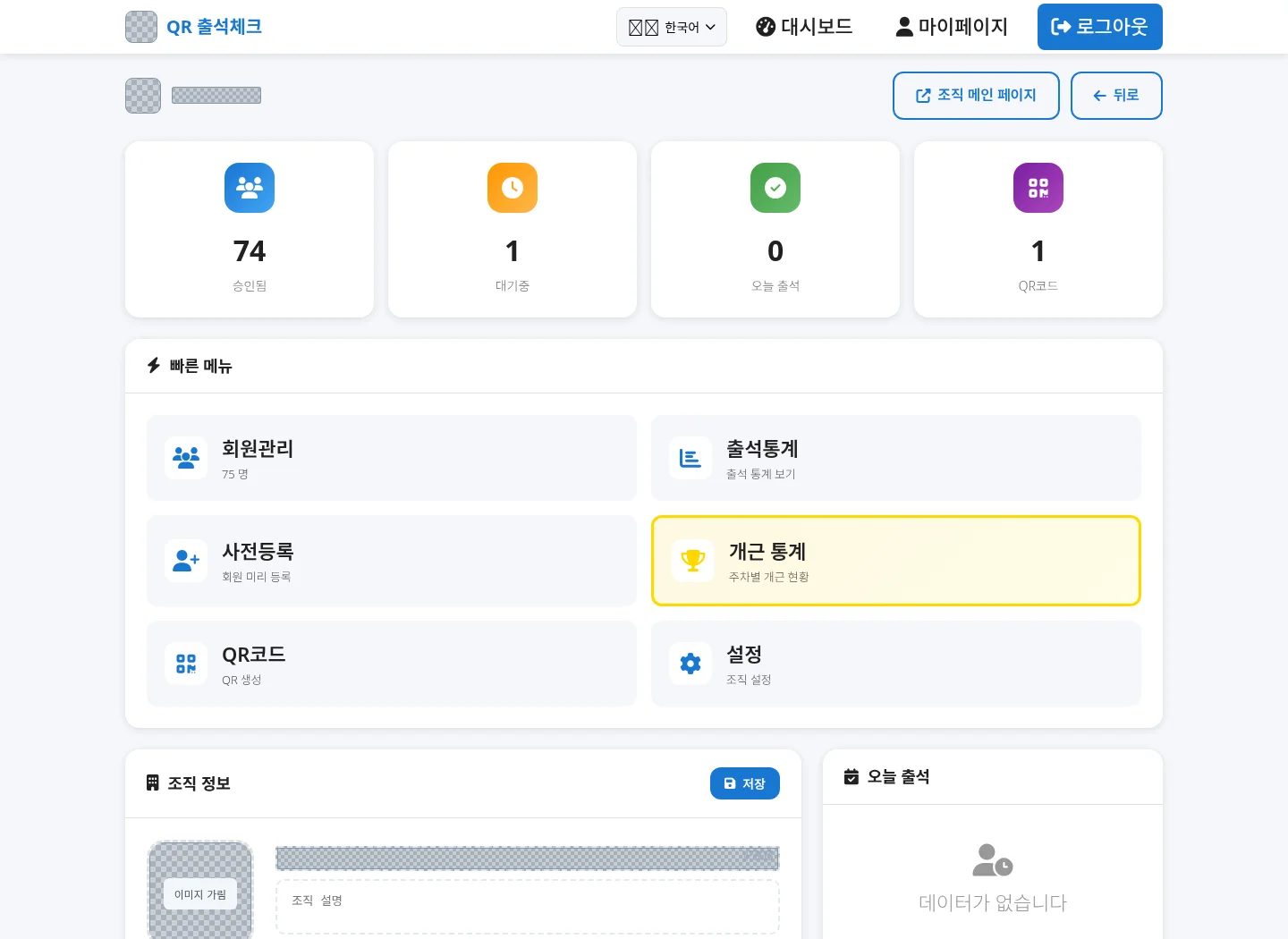
STEP 01
Sign up as an administrator → Create an organization
Only the person responsible for managing attendance creates an administrator account. Members attending are as follows: Member attendance method. Enter
- Register, enter your ID, email, password and confirm password. The ID must be at least 4 characters including lowercase letters, numbers, and underscores, and the password must be at least 8 characters.
- Check and agree to the Terms of Use and Personal Information Processing Policy and then sign up. Once registration is complete, you will be automatically logged in and taken to the dashboard.
- On the organization creation screen of the dashboard Organization name/type. Please write a description that is easy to understand about your organization. Find
- When you create an organization, a default attendance QR is automatically created and the organization management screen opens.
Start with a basic organization and QR, then add groups and perfect attendance settings as your membership increases.
STEP 02
Set attendance time and prepare today’s QR
Dashboard → Select organization → Organization management → QR management
- Make sure the name of the default QR is recognizable to the operator.
- Set attendance start and end time SaveYes. Please make sure these are the same as the site's operating hours.
- Check allowed devices in organization management. If a member uses a mobile phone, mobile access must be permitted.
- Today's QR Code Check the date. Guide members through the Share/Download menu or display the organization attendance screen on site.
- When actual operation begins, check the completion of the member's first attendance and the records on the administrator screen.
The test mode of QR management is a function to check the screen without time limit and is not recorded as actual attendance. Please check normal attendance links and dates when operating.
Today's QR varies depending on the date. Please check each operating day to ensure that you are not redirected to an older date or link.
STEP 03
Members access for the first time through QR
- Scan the QR received from your group using your phone camera or open the attendance link provided.
- On the daily attendance page you first accessed Name/Phone number. There is no need to separately sign up for an administrator ID and password. Please check
- On the daily attendance page, automatic approval and attendance are processed after registration. Make sure attendance is complete on the screen.
- If you log in again from the same device, the member will be recognized and automatic attendance may proceed. It varies depending on the QR date, attendance time, and device status, so check the completion screen each time.
Waiting for approval may appear depending on other registration routes or membership status. If it's on hold, ask your organization administrator for confirmation.
“Please scan today’s QR. If this is your first time here, enter your name and phone number, and check the attendance completion screen. If you are unable to register or attend, please notify the operator.”
STEP 04
As the number of members increases, organize them into groups.
Organization Management → Member Management
- Check registered members and approval status. Waiting members will be approved after checking their registration.
- Create groups necessary for operation, such as a class, group, or team. Select members to designate groups, and use the bulk group designation function for multiple members.
- If there is an existing list, the organization management Pre-registration Review the menu. During the daily attendance registration process, we attempt to match pre-registration information with name and phone number.
- Select a group to check attendance statistics and perfect attendance statistics. Your current group membership will be used, so check your reports again if you've moved groups.
An organization is an independent operating unit, and a group is a division of members within the organization. Adding a QR and adding a group are different settings.
STEP 05
Display attendance screen on TV/monitor
Organization Management → Page Theme Settings → Preview → Organization Main Page
- Connect a PC connected to the Internet to a TV/monitor.
- In Organization Management Page theme settings. Choose colors, effects, and layout and save the theme.
- Preview. at the top of organization management Open the on-site attendance screen with Organization Main Page.
- Open in full screen function of PC browser. Make sure the PC showing the screen is included in your organization's allowed devices.
- On the next operating day, open a new page to check today's date, QR, and attendance time.
At the site, the organization attendance screen is displayed instead of the administrator screen with the member list. Carry out management tasks on a separate screen for the person in charge.
STEP 06
Today’s attendance → Record by date → Perfect attendance
Organizational Management → Attendance Statistics / Perfect Attendance Statistics
- Today’s attendance: Check same-day records in Organization Management.
- Attendance statistics: Select the date/period and check the roster, group, and attendance time. Export to CSV if necessary.
- Perfect attendance statistics: Set the program start date, program week, and attendance schedule. Check the status of each group and attendance/absence status.
- After finishing: After checking the records of omissions, absences, and corrections, we organize the final perfect attendance status.
A high number of repeated attendance does not necessarily mean perfect attendance. Current system’s perfect attendance calculation standardfirst. Just follow
STEP 07
Same order online
- Set attendance times for online meetings.
- Share the attendance link for that day with participants. Members participating with one device may find it more convenient to click a link rather than a QR image.
- We will guide you through the name/phone number registration and attendance completion screen.
- The administrator checks the attendance statistics for that date.
Attendance records are data that confirm check-in. This feature does not automatically check class viewing time or exercise completion.
STEP 08
Confirmation procedure when attendance is not possible
| Visible situation | Check first |
|---|---|
| It says QR has expired | Check if the QR is of today's date and receive new instructions from the operator. |
| It says it is not attendance time. | Check the QR start/end time and current time in organization management. |
| Device not allowed | Check the organization's mobile, tablet, and PC permission settings and whether to block them. |
| It says it’s the first time on a new phone | Check if the name and phone number are the same as the existing registration. If existing member information does not match, contact the administrator. |
| I saw the completion screen, but there was no record. | Check whether it is a normal attendance link, whether it is in test mode, and whether the organization and date you are viewing are correct. |
| Perfect attendance results are different from expected | Check the start date, total program week, designated attendance date, missed class week, omission record, and ongoing program week. |